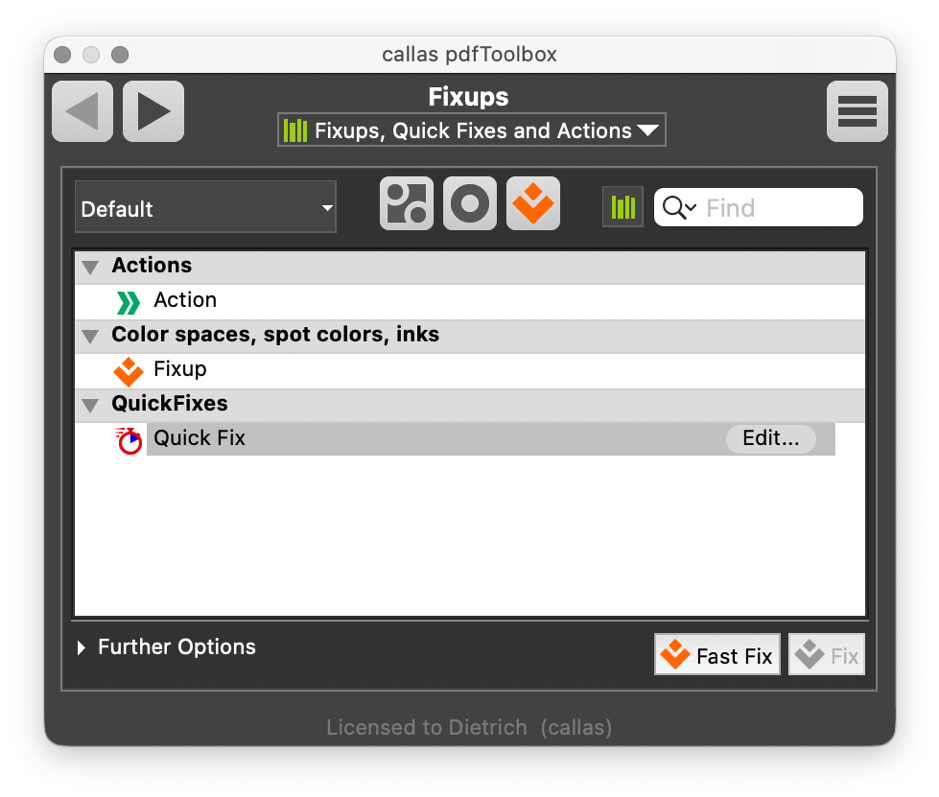
What exactly is a Fixup? How is a Quick Fix different? And when should you use an Action instead?
In a nutshell:
Quick Fix: Fast, isolated modifications
Fixup: Deep PDF analysis and rule-based correction
Action: Workflow-oriented document operations
But we should not stop here – if you want to make the best use of the technology it is helpful to fully understand the background. One design goal for pdfToolbox was to make it as simple as possible, but without compromising on performance, features and flexibility, so there must be a reason why they are different.
Let us first compare Quick Fixes and Fixups.
Quick Fixes operate directly
Quick Fixes are intentionally lightweight: They perform specific modifications that can be executed quickly and directly – without first executing a complete analysis of all PDF properties and especially not of all content streams. A Quick Fix does not first build a complete understanding of the PDF and that is the main difference from a Fixup. It performs a targeted operation directly on the relevant PDF parameters or objects. Quick Fixes are fast because they avoid the full analysis, but that makes them also limited in scope.
A Quick Fix changes one very specific aspect of a PDF file:
- rotate pages,
- embed an output intent,
- reorder pages,
- correct page geometry
or other similar straightforward operations.
Actually – and hidden from the user – the Quick Fix engine even is a separate executable which makes it even faster since the main pdfToolbox engine does not have to be started.
Fixups are part of the Profiles engine
Fixups are part of the main pdfToolbox PDF engine, which I will refer to as the “Profiles engine” – Quick Fixes are not. Fixups that change page objects are only executed after pdfToolbox has analyzed and interpreted the full structure of all affected pages. This will only be skipped if a Profile only contains changes on object level, e.g. to change document metadata.
This approach is especially advantageous with complex PDFs containing:
- nested transparency,
- inherited color spaces,
- overprinting,
- reused objects,
- or other complicated object relationships.
The “holistic” approach of the Profiles engine ensures consistent results after complex modifications, reliably handling complex object dependencies and reducing side effects.
Since the Profiles engine will first create a comprehensive internal understanding of the page/document before it changes anything it can improve performance using a different approach than the direct Quick Fixes: All Fixups in a Profile are applied together.
This by itself is good to understand: The engine does not simply execute one Fixup in a Profile after another. If the engine would modify each Fixup separately in between saving consistent results the total required time would increase with each such change. Applying all changes in one go requires more planning for pdfToolbox but makes the whole operation faster again – especially if there are many things to do. That is one of the reasons why Profiles scale so well for industrial prepress workflows.
If btw you want to make sure that Fixups are applied in a certain order and independently from each other you can achieve that by combining them in separate steps in a Process Plan. After each step a consistent valid PDF file will be created. Another difference you should be aware of when creating advanced Profiles.
A third important advantage of the integration into the full Profiles engine is that Fixups can use filters. You may in almost all Fixups combine the Fixup with a filter – normally via a pop up with the title “Apply to”. That filter can then use any Check that you can build with the Profiles engine. That allows you to limit the scope of any Fixup very precisely to certain objects. Something that is not available for Quick Fixes.



 pdfToolbox